Frequently asked questions about TCG PowerTools
How do I print a TCG PowerTools shipping label?
Grant the PowerTools permission, enable the print button, open the shipping dialog of an order and click LabelButler Print. The preview opens with the order number, address and shipping method.
Where does the LabelButler Print button appear?
In the shipping dialog of an order, next to Mark as shipped. It does not appear in the order list or the normal Cardmarket view.
Which permission does LabelButler need for TCG PowerTools?
The optional host permission for https://new.tcgpowertools.com/*, granted in Settings on the Cardmarket Letter tab.
Which data does LabelButler capture?
The order number, recipient address and shipping method from the open PowerTools shipping dialog.
Which Internetmarke formats does the Stamp Depot support?
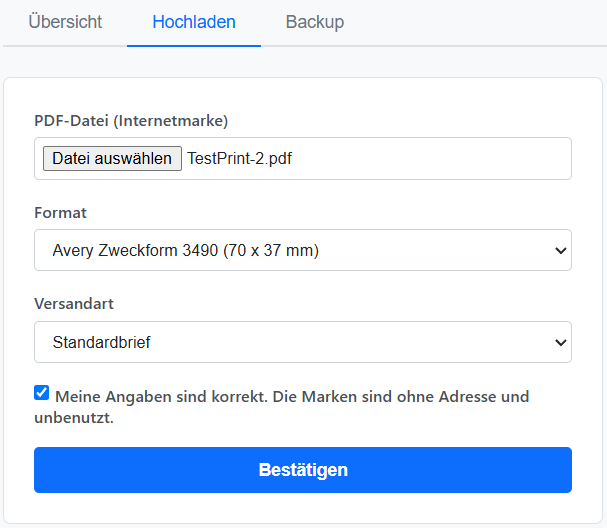
Brother DK-22205 (62×37 mm), Avery Zweckform 3490 (70×37 mm) and Din A4 (2 columns).
Which shipping classes does LabelButler support?
Standard letter, Compact letter, Large letter, Maxi letter, Standard letter International and Compact letter International.
Which output media are there?
62×100 mm, 100×150 mm (4x6), C5 229×162 mm, C6 162×114 mm and DIN long 220×110 mm.
Why is the LabelButler Print button missing?
Usually the PowerTools permission is missing, the Insert LabelButler Print button setting is off, or the shipping dialog is not open. Allow access, enable the setting and reload the PowerTools page.
Why is no matching stamp found?
There is no stamp for the shipping class in the Stamp Depot, or it is an international class that is not auto-matched. Upload the matching stamp or select it manually.
Does LabelButler cost anything and is data transmitted?
LabelButler is free, has no account and no cloud. All data stays local in the browser; there is no analytics and no transmission to us or third parties.